Here is how you can analyze traffic and avoid getting fooled by attackers as a junior security analyst
February 27, 2026 • Log analysis
A practical guide to PCAP analysis for junior security analysts how to think like an investigator, spot malicious traffic, and not get tricked by attackers hiding in plain sight.
Download the PCAP file from here: https://malware-traffic-analysis.net/2022/02/23/index.html
Starting the Analysis
First thing you should know is that PCAP analysis is not "open Wireshark and click stuff." That's exactly how you get drowned.
Think of PCAP analysis like a crime scene. You don't touch everything. You look for intent, flow, and anomalies. And if you don't know what question you're answering, you're already wrong. Before opening the PCAP, ask yourself: "What am I trying to prove or disprove?" Am I looking for data exfiltration? Was there C2 traffic? Was this malware or just noise? Who talked to whom, how, and why? If you can't answer that in one sentence, close Wireshark.
Alright, with that said, let's begin our exercise.
Note: We are not going to analyze packets. We analyze conversations. Packets are noise. Conversations are truth. And we look for the truth, not the noise.
Let's start by getting the metadata about the packet capture:
bashcapinfos suspicious.pcap
We'll be looking for capture duration, number of packets, average packet size, and link type.
Conversations Before Packets
Now open Wireshark and go to Statistics → Conversations.
Pay attention to the top talkers, IPs with weird byte ratios, and long-lived low-volume connections. When you see one IP talking to many random IPs, or one IP receiving way more than it sends (or vice versa), or repeated short connections every X seconds that's a red flag right there. And this alone solves more than 60% of your case.
Let's do that in our exercise.
Sort by Duration, then by Packets.
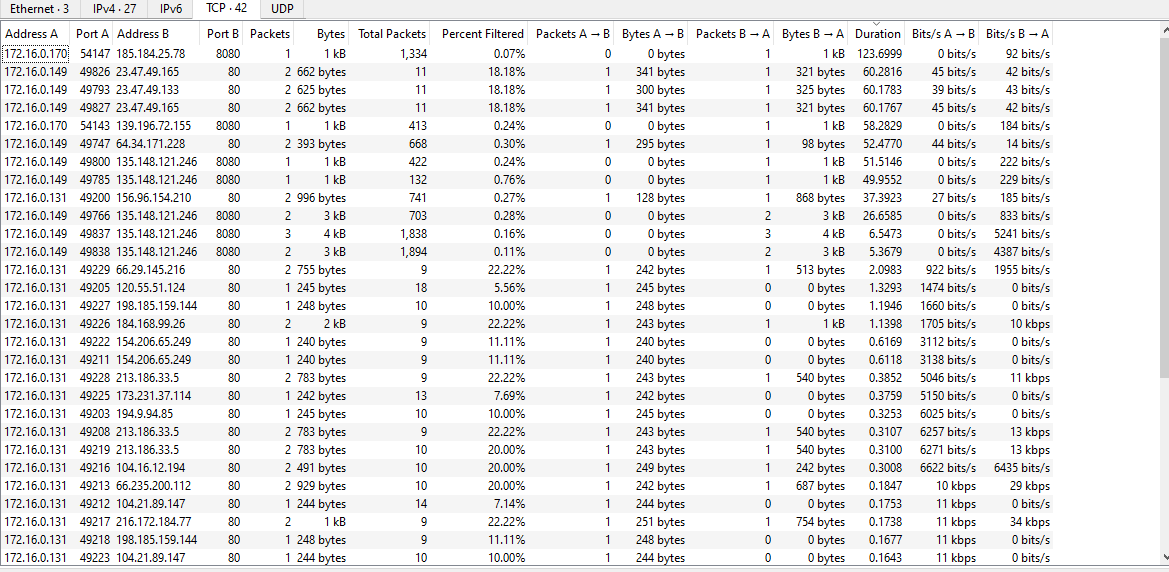
By sorting by duration, we can see there is a significantly long communication between 172.16.0.170 (Point A) and 182.184.25.78 (Point B). We can see the bytes and packets shared between the two hosts. If you look closely, there are absolutely zero packets and bytes going from A to B, but looking at the opposite direction B to A there is 1 packet and 1 byte. The rate from B to A is 92 bits/s. In a nutshell, an external host has established a long-duration communication with our local host and sent some data to it.
We can also see traffic between 172.16.0.149 (Point A) and 23.47.49.165 (Point B), where there are many bytes and packets shared between the two. The repeated packet count, duration, and byte values suggest this is something automated.
What we're seeing here: long-lived connections, very small packet counts with long durations, and the same destination IP appearing repeatedly. Keep this mindset in mind browsers open many connections, but malware keeps one alive. Is that commands being sent? We'll find out.
Now let's sort by Packets.
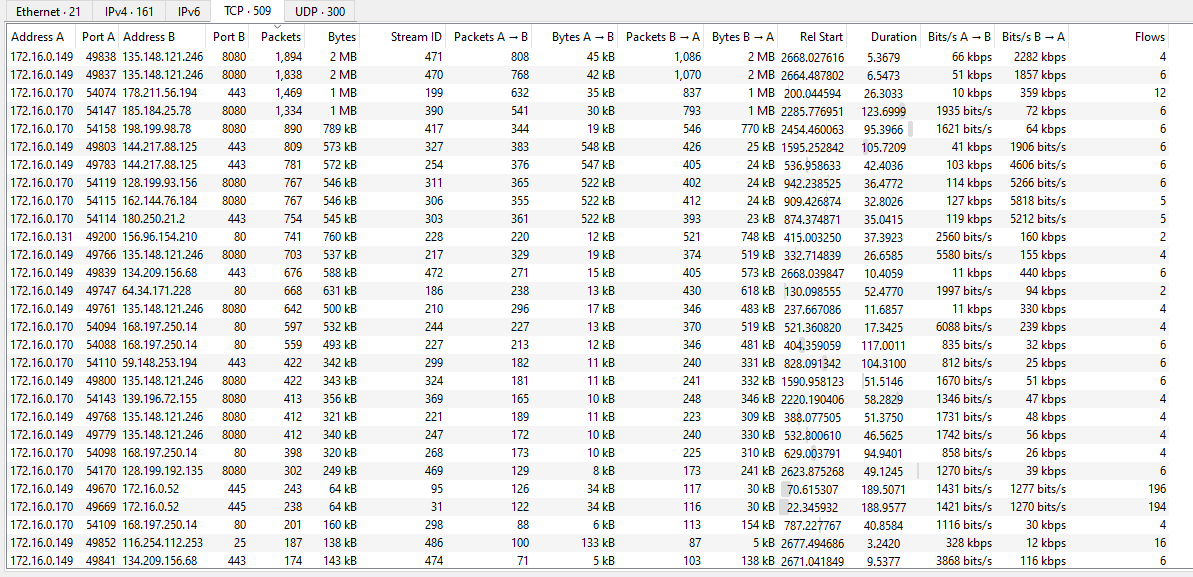
We can see a significant number of packets being shared. Looking at the flow — which address generates more packets and what their duration is we can see the ones that generated more packets. There are a lot of packets transferred between address A and B but with a very short duration. One thing to note: normal web browsing typically shows short duration with larger packet sizes. Keep that in mind. Let's keep moving.
Apply this filter to kill the noise:
bash!(ip.src >= 10.0.0.0 && ip.src <= 10.255.255.255) &&
!(ip.src >= 172.16.0.0 && ip.src <= 172.31.255.255) &&
!(ip.src >= 192.168.0.0 && ip.src <= 192.168.255.255)
It's important to filter out internal IPs so you can focus on public IPs and how they communicate. Now let's filter for HTTP traffic.
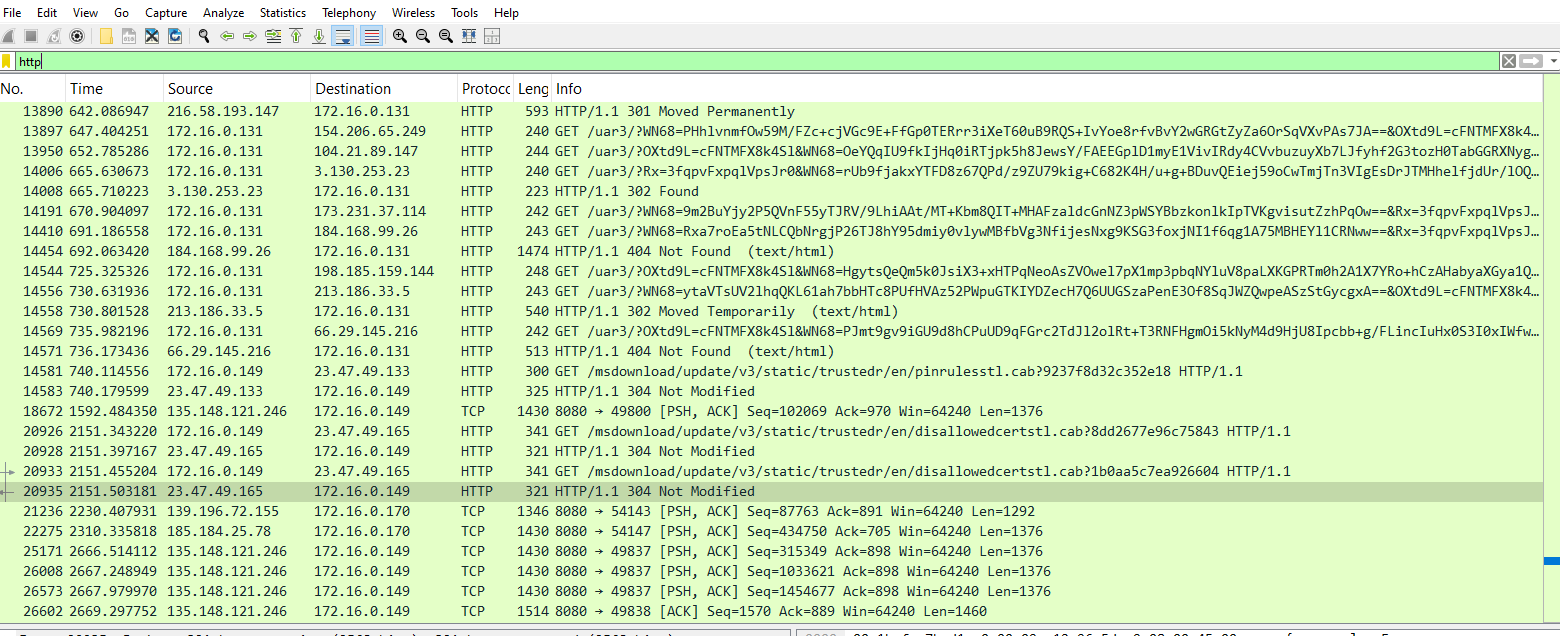
We can see a bunch of GET requests. Let's narrow it down based on the conversation we're interested in.
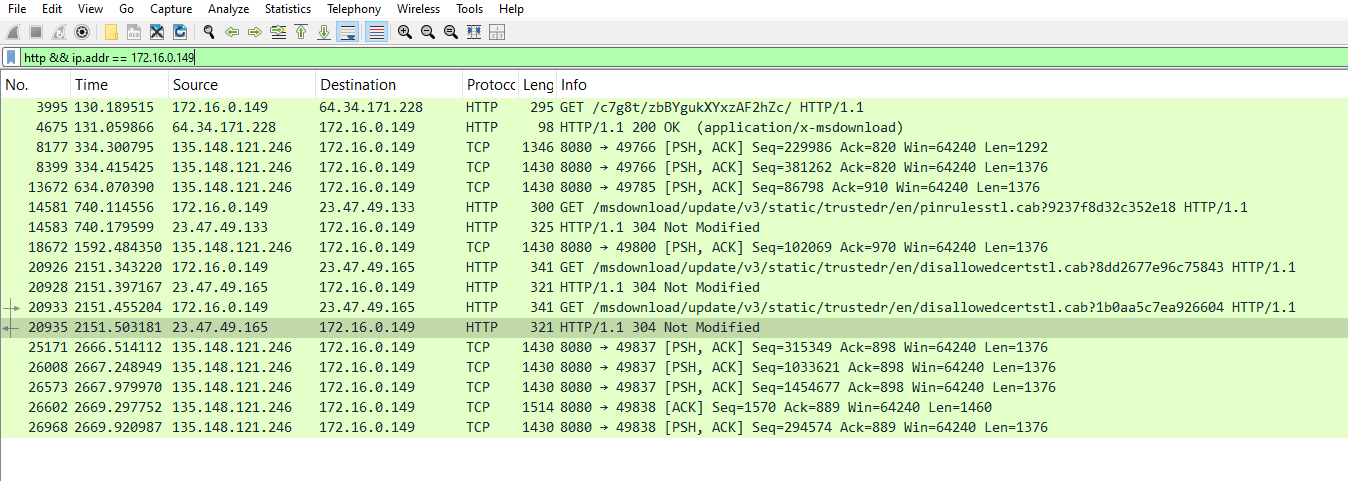
172.16.0.149 let's see what it is by following the HTTP stream.
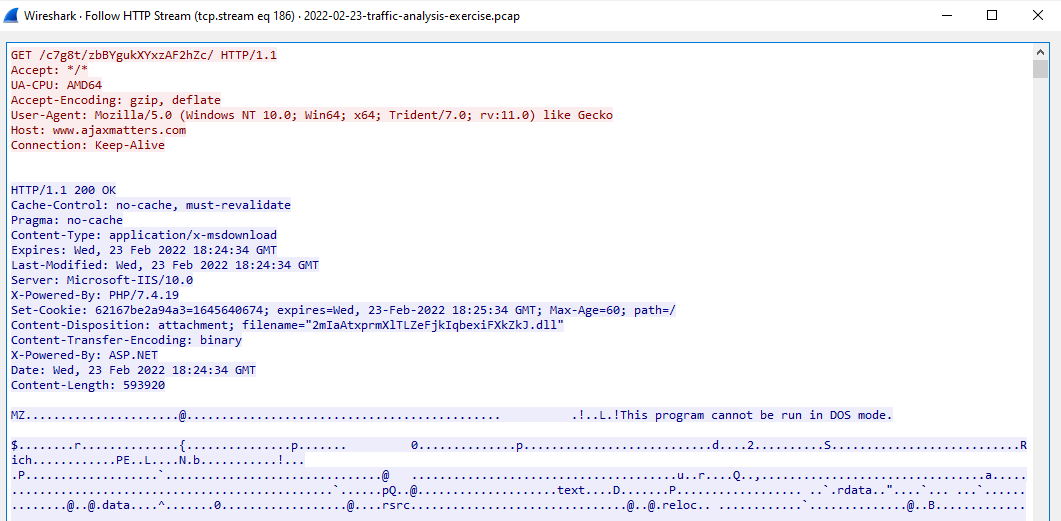
Interesting. We can see the text "This program cannot be run in DOS mode" I assume you get the point. If not: the file that was downloaded is a .exe, which could be malware.
What should we do now? According to the exercise, we're asked to identify the malware. So let's export it for further investigation. Go to File → Export Objects → HTTP and you'll see our file. Click on it and save it to your machine.
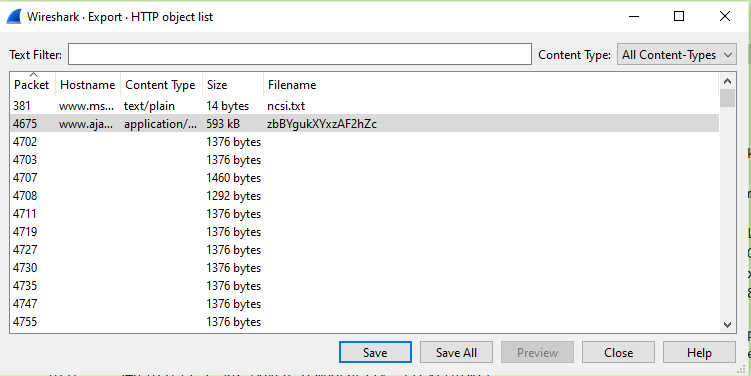
Warning: Be careful. Do this in a lab environment only. Do not save malware on your host machine. Always work in an isolated environment, and do not execute it.
Now let's take the hash and look it up on VirusTotal.

Let's head over to VirusTotal. You can also use strings to inspect imports and perform basic malware analysis to understand the malware's behavior, but let's keep it simple for now.
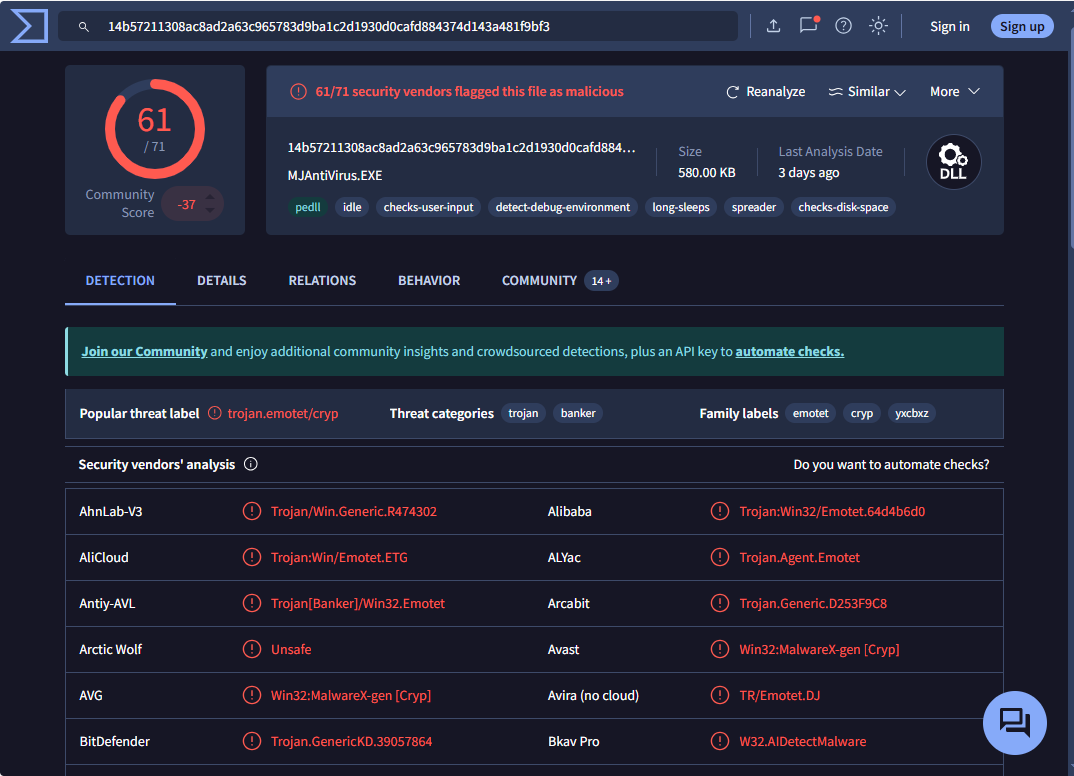
This is confirmed malware. The exercise asked "What type of malware are they infected with?" — we can see it's a Trojan.
Identifying Active Hosts and User Accounts
Now let's move to the next question: "What hosts and user account names are active on this network?"
There are different ways to answer this. Here's a quick reference for what filters to use depending on what you're looking for:
| If you want… | Use this filter | Key field to inspect |
|---|---|---|
| Device name | dhcp.option.hostname | Option 12 |
| Windows user | kerberos.CNameString | CNameString (check for $) |
| Mac/iPhone | mdns | _device-info._tcp.local |
| SMB user | ntlmssp.auth.user | User field |
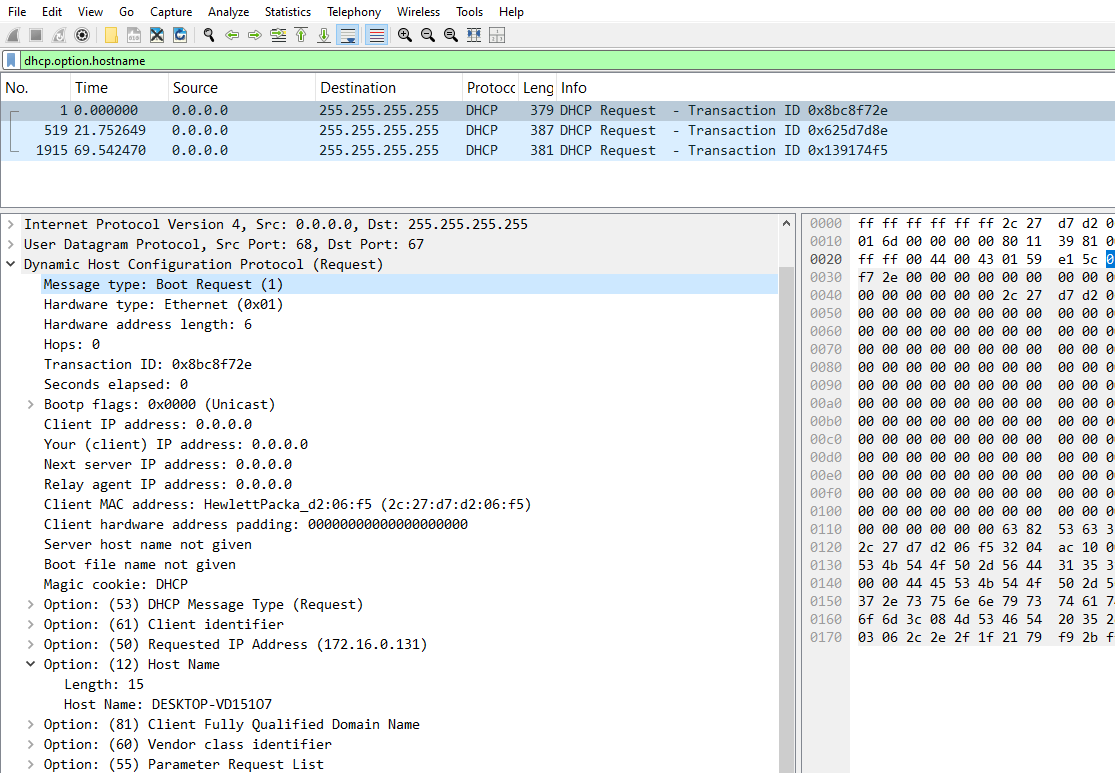
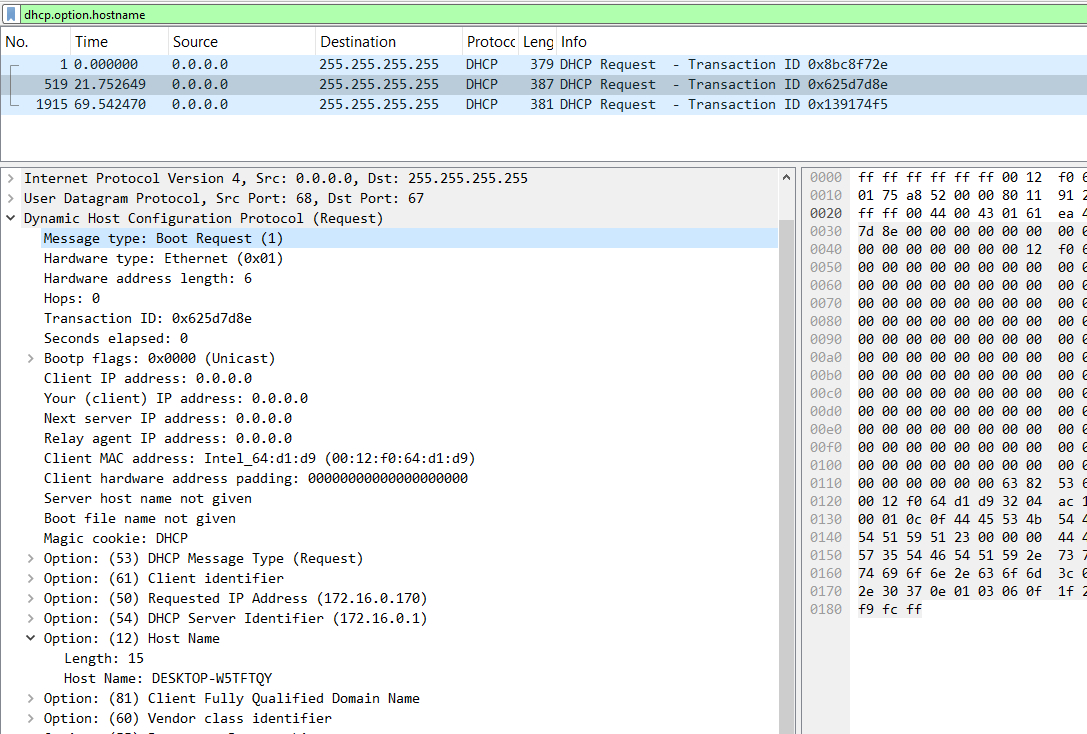
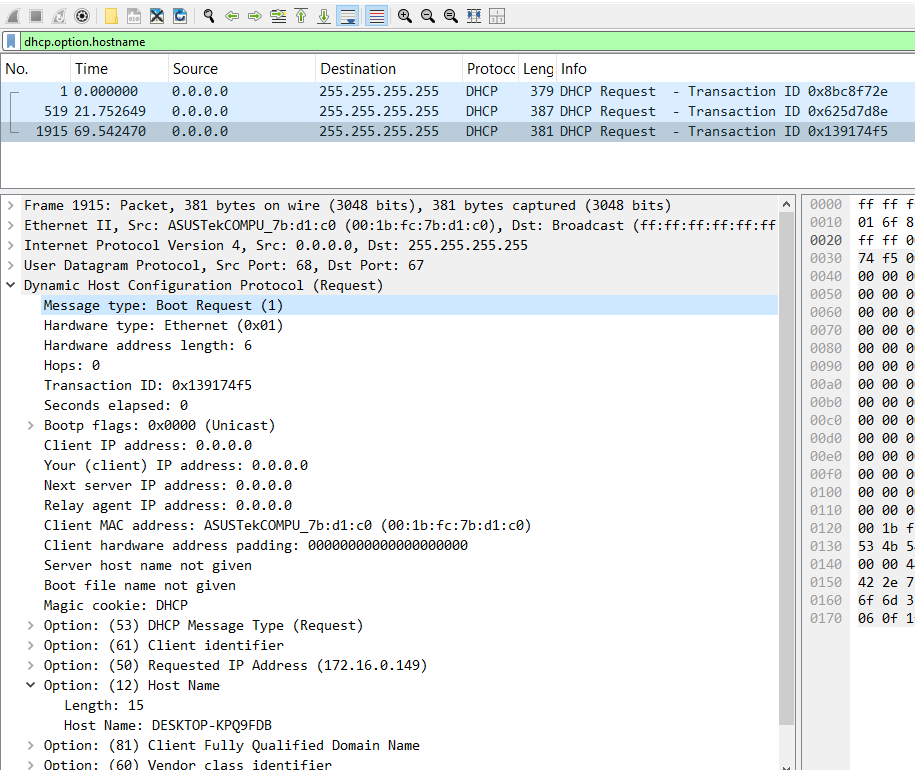
Using dhcp.option.hostname, we can find all the answers. Just click on any DHCP traffic and scroll down to Option 12.
Host 1:
Host 2:
Host 3:
And with that, we've completed the exercise.
How Juniors Get Fooled: Attackers Hiding Inside Cloud Services
This is where junior analysts get embarrassed in real SOC environments. Because modern attackers don't use random VPS servers anymore.
They use Amazon Web Services, Microsoft Azure, Google Cloud, Dropbox, GitHub, Slack, and Telegram. A cloud provider does not equal safe traffic.
Why do attackers use cloud infrastructure? It's cheap, disposable, and trusted by firewalls. You can even pay for some cloud services anonymously with crypto. That makes it perfect for C2. Here are four common techniques — understand these and you stop getting fooled.
1. C2 Hosted on Cloud VPS
The attacker rents a cheap VPS on AWS or Azure. Your PCAP shows something like:
Internal IP → 52.x.x.x (AWS)
Port 443
And you assume it's AWS, so it's probably legit. Stop. Ask yourself: does your company normally communicate with random AWS IPs? Is there an SNI? Is there a proper TLS certificate? Is the traffic periodic?
Even if the IP belongs to AWS, look for beacon timing (regular intervals), small consistent packet sizes, long duration with low volume, and no real web browsing behavior. Cloud IPs don't make traffic normal. Behavior decides.
2. C2 Over Legitimate APIs
This one fools junior analysts into thinking "it's a legitimate domain, so it must be fine." Even legitimate services can be abused. Malware commonly uses the Slack API, Telegram Bot API, Dropbox API, and GitHub raw file endpoints.
Traffic looks like:
Internal IP → api.telegram.org
HTTPS
Valid certificate
Valid SNI
Even if everything looks perfect, watch for the same API endpoint being hit every 60 seconds, the same POST size repeated, a user-agent string that doesn't match any browser, and a host machine that doesn't normally use that service.
3. C2 Over Cloud Storage (Dead Drop Method)
The attacker uploads commands to a Dropbox file, GitHub gist, or S3 bucket. The malware downloads those files, reads the commands, and executes them. In the PCAP you'll see periodic HTTPS GET requests to the same file path, the same byte size every time, and no browsing session context around it.
Juniors look at this and say "looks like normal HTTPS." But think about it this way: why is this machine downloading the same small file every 5 minutes?
4. Domain Fronting (Advanced Used by APTs)
Traffic appears to be going to google.com or microsoft.com, but inside TLS it routes somewhere else entirely.
To detect it, look for SNI mismatches, a strange certificate chain, and CDN edge IPs with unknown backend behavior. This technique is rare in basic lab environments but common in APT operations.